1. Your first notebook
In this part you create a notebook, add a few notes and folders, and learn where the files live. Nothing is synced yet; that's part 2.
Create the notebook
- Open GitWriter.
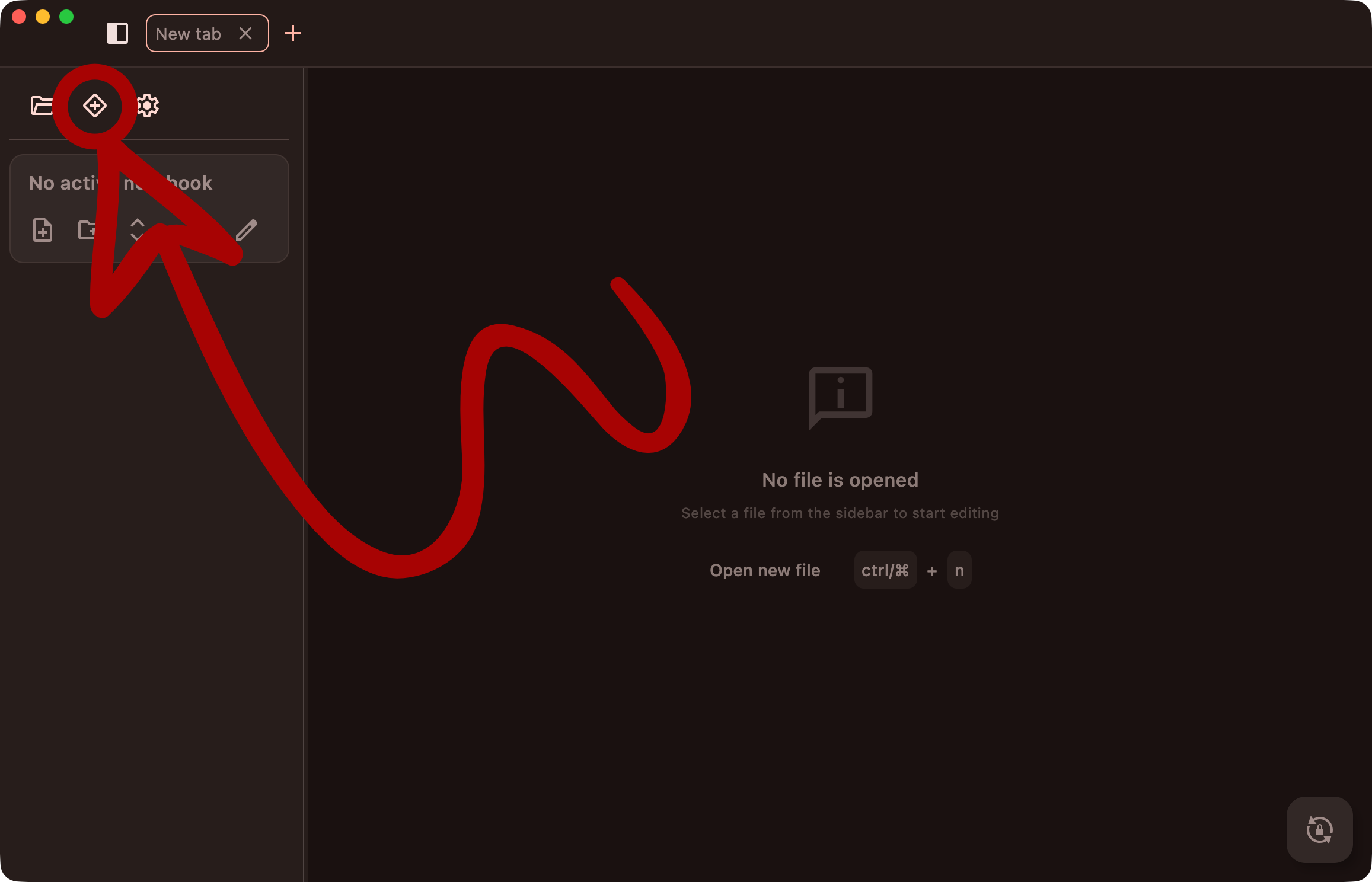
- In the sidebar, click Add notebook (the
+button at the top). - Stay on the Init tab.
- Enter a Notebook name, for example
Personal. - (Desktop only) Pick a Destination directory, or keep the default.
- Click Create.
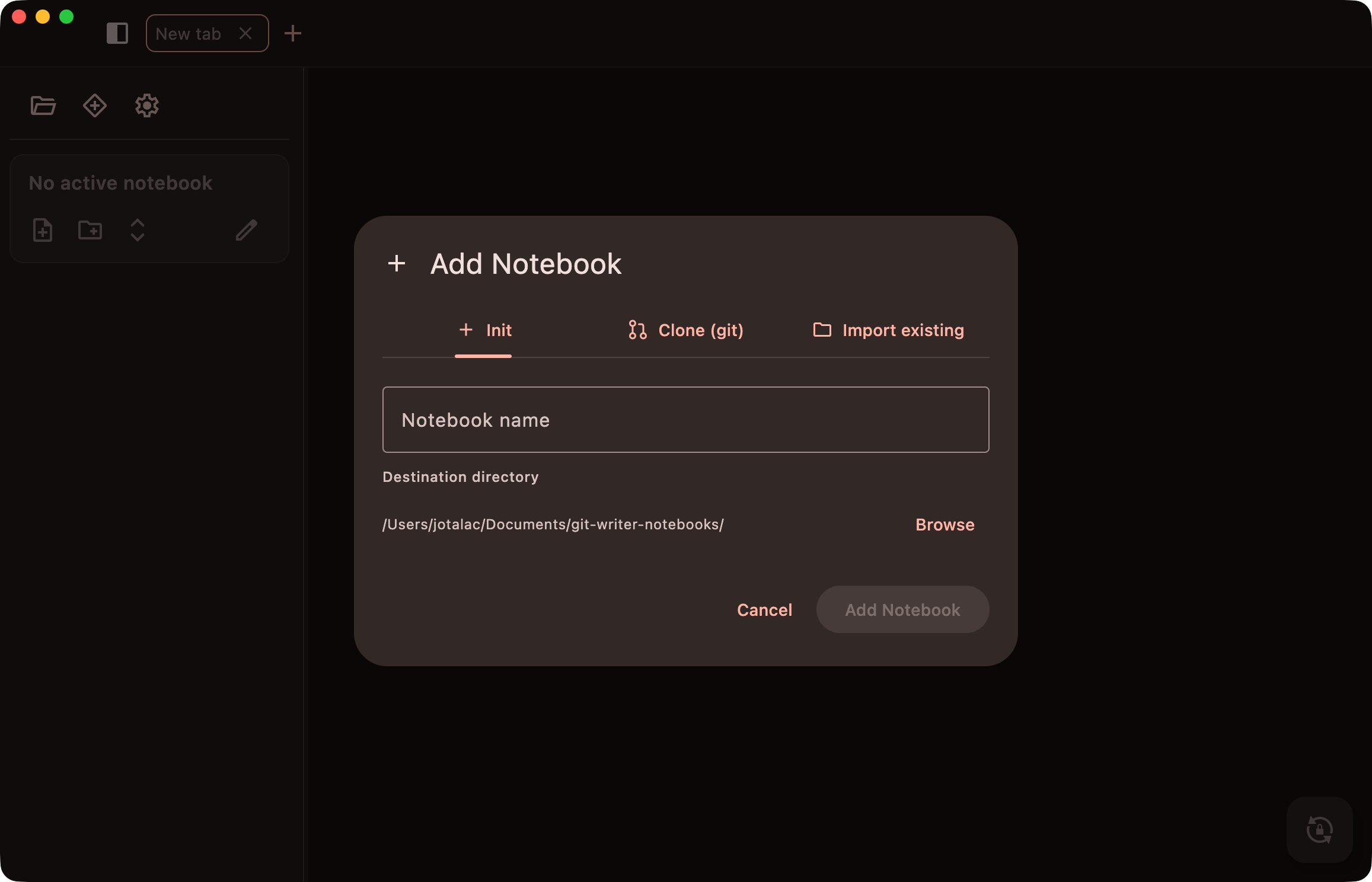
GitWriter creates a folder named after the notebook and turns it into a Git repository. It also creates an images folder inside it, where pasted images go.
Where are my notes?
New notebooks are created in a default folder unless you choose another one:
| Platform | Default folder |
|---|---|
| Desktop | ~/Documents/git-writer-notebooks |
| Android | the app's own storage (…/git-writer-notes) |
| iOS | the app's Documents/git-writer-notebooks folder |
The other tabs of the dialog are for later:
- Clone (git) downloads a notebook that already exists on a Git remote. See part 3.
- Import existing (desktop only) adds a folder that is already on your disk, for example notes you wrote in another editor. If the folder isn't a Git repository yet, GitWriter initializes one, and an existing
.gitfolder is kept with its history.
Add notes and folders
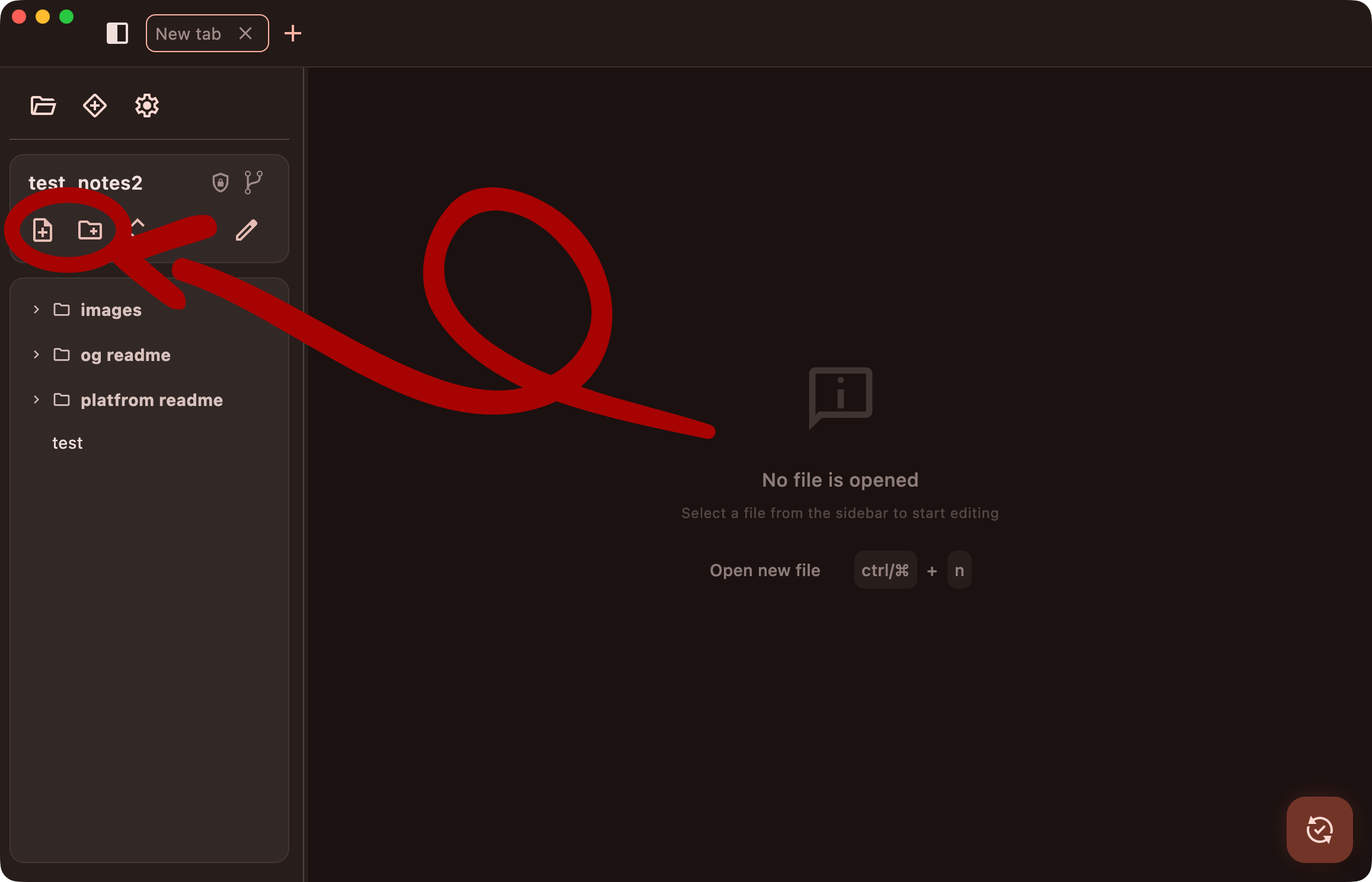
Use the buttons at the top of the file tree:
- Add note creates a Markdown (
.md) file. - Create folder creates a folder.
Right-click an item (on mobile, tap its ⋮ button) for more actions: Rename, Delete, Duplicate, Copy path, Add note or Add folder inside it, and Export to PDF. To move notes and folders, drag them (on mobile, long-press first).
Write
Click a note to open it. GitWriter's editor is a live preview: Markdown is shown formatted, and the syntax (**, #, []()) appears only on the line you're editing. Images, tables and maths are drawn in place.
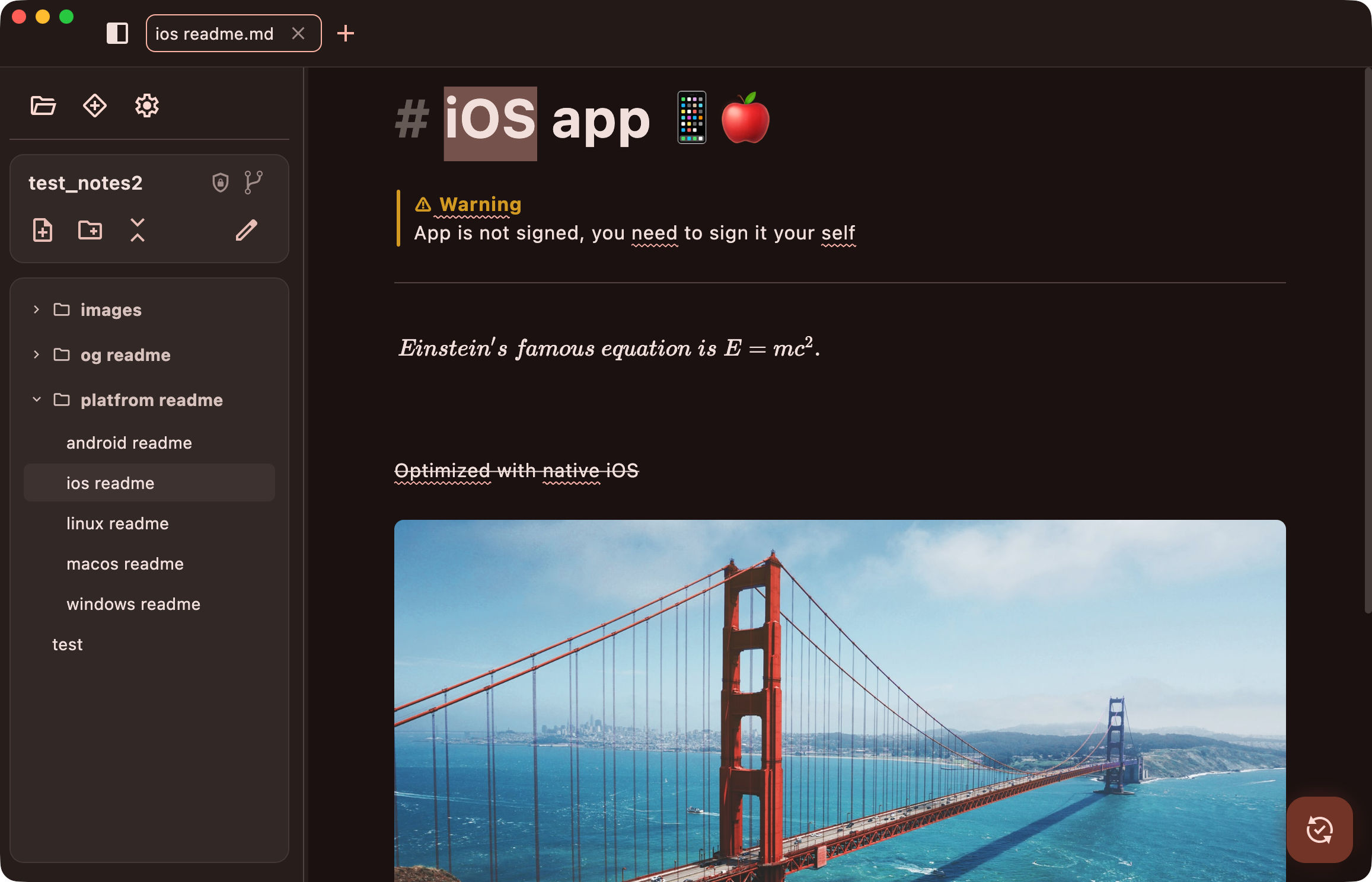
Notes are saved automatically as you type, so there's no save button. The editor page lists everything it can do and all keyboard shortcuts.
Switch between notebooks
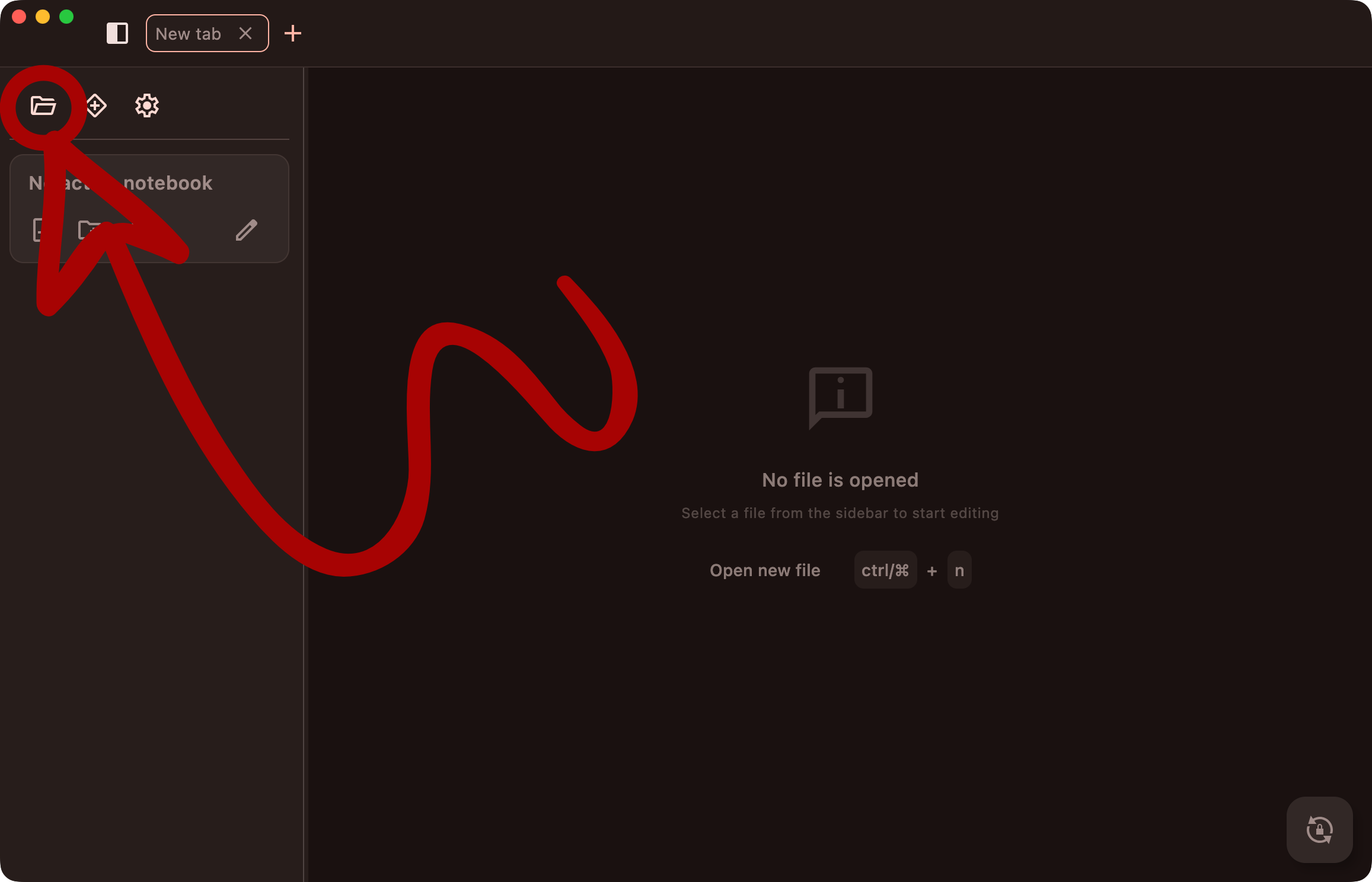
You can have as many notebooks as you like. Click Open notebook in the sidebar to see them all and switch to another one, or delete one.
Deleting a notebook deletes its folder
Deleting a notebook removes its folder and every note in it from this device. Notes that were already synced stay on the remote.
Next
Your notes are on this device only. In the next part you connect the notebook to a Git remote so it's backed up and can sync.