3. Add another device
Your notebook is on a remote now. In this part you download it onto a second device, for example your phone, so both devices stay in sync.
Clone the notebook
On the second device:
- Install GitWriter (see Installation).
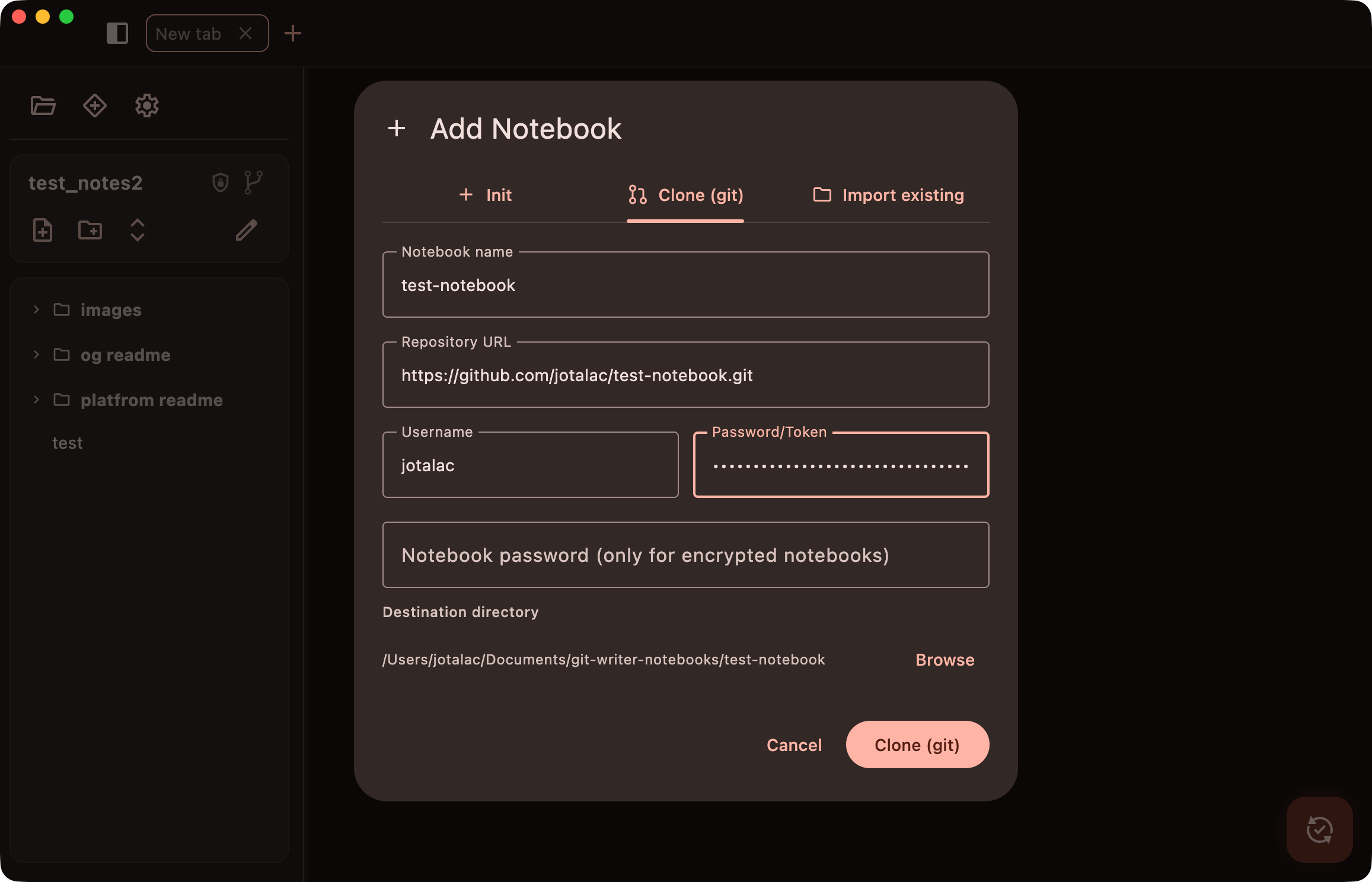
- In the sidebar, click Add notebook.
- Switch to the Clone (git) tab.
- Fill in:
- Notebook name: how it's called on this device. It doesn't have to match the other device.
- Repository URL, Username and Password/Token: the same as in part 2. You can reuse the token or create a separate one for each device.
- Notebook password: leave it empty. It's only for encrypted notebooks, see part 4.
- (Desktop only) Destination directory: where the notebook folder goes.
- Click Clone.
GitWriter downloads the repository, notes and history included, and opens it. The remote is already set, so syncing works right away.
Using both devices
Write on either device. Each sync commits your changes, pulls the other device's changes and pushes yours. With auto sync on, you'll rarely think about it.


If both devices changed the same note before syncing, Git may not be able to merge the changes on its own. GitWriter then shows a dialog where you choose which version of each note to keep. Syncing & Conflicts explains this in detail.
Different lines, no conflict
Git merges changes line by line. Editing different parts of the same note on two devices usually merges cleanly. Only changes to the same lines conflict.
Next
Your notes sync, but the Git host can read them. If you'd rather it couldn't, encrypt the notebook.